Public Node Variables  

All blueprint exposed variables in a state class can be made visible in the state machine graph for easy editing. At run-time they'll evaluate any expressions.
Expose Variables
In a state class blueprint, add a variable as you would in any other blueprint and press the public button next to the variable name. Compile your class blueprint and state machine blueprint for the variable to display on the node.
C++ variables need to be marked BlueprintReadWrite or BlueprintReadOnly.
| .h | |
|---|---|
Setting the meta specifier HideOnNode will always keep a variable from displaying.
Categories
Categories will automatically be added to the state. Default categories will display first, with all other categories being listed after, in order.
Categories can be nested using pipes. For example:
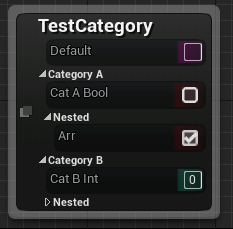
Sorting Variables
Simply rearrange the variables in the blueprint to reorder them on the state.
Logic Driver recognizes DisplayAfter and DisplayPriority meta specifiers.
Variable Graph
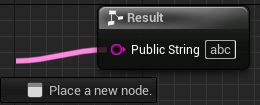
Each node made public will be assigned its own blueprint graph when used in a state machine graph.
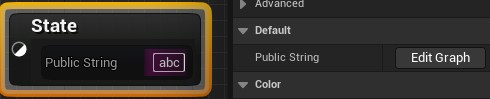
Double click the property on the node or right click the property on the node and select Go to Property Graph. You can also select Edit Graph from the details panel.
From here you can also place variables from the owning state machine blueprint or define more complex expressions.
Graph Evaluation
The default behavior is for variable graphs to evaluate when a state becomes active. When variables evaluate can be configured in the class defaults. State classes can also manually evaluate variables by calling Evaluate Graph Properties.
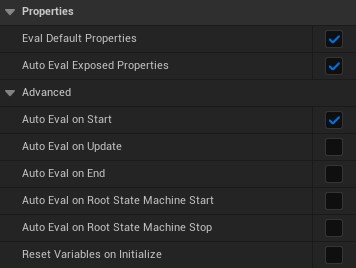
Auto Eval Exposed Propertiessignals that exposed properties are allowed to evaluate.Eval Default Propertiesis an optimization for variables that only have a default value entered.
Variable Types
All built and custom variable types should be supported. Default values can be entered for most items. Struct properties can be split into per-member sub-pins to author defaults inline — see Struct Properties.
Variable Containers
Arrays
Nodes have special array handling where each element will be assigned a graph.
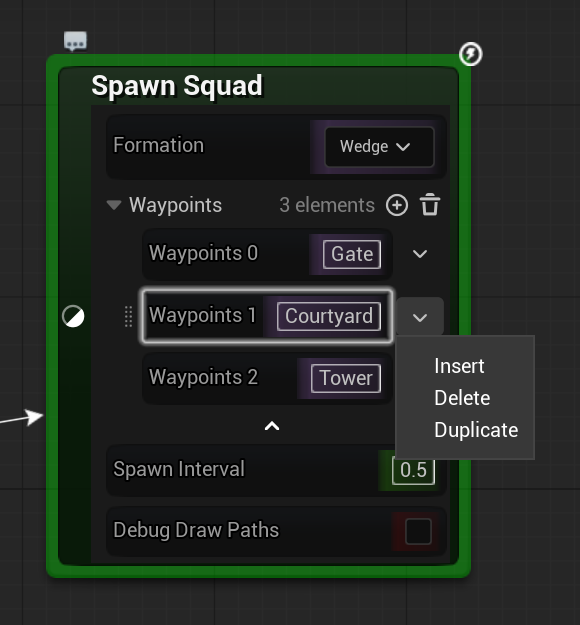
Array elements can be edited directly on the node's property tree view. The array header shows the element count, a + button that adds an element, and a clear button that removes them all. The dropdown at the end of each element row offers Insert, Delete, and Duplicate. Drag the handle at the left of an element row to reorder it on the node, or drag and drop in the details panel. An empty exposed array still shows its header row, so elements can still be added.
- Elements can also be added or removed from the details panel.
- If you want to pass in the entire array, you will need to go under the local state graph, call
Get Node Instanceand set the array from there.
Arrays of structs additionally support per-element splitting. See Struct Arrays.
Unsupported Containers
Maps and Sets can't be exposed on the node.
Struct Properties
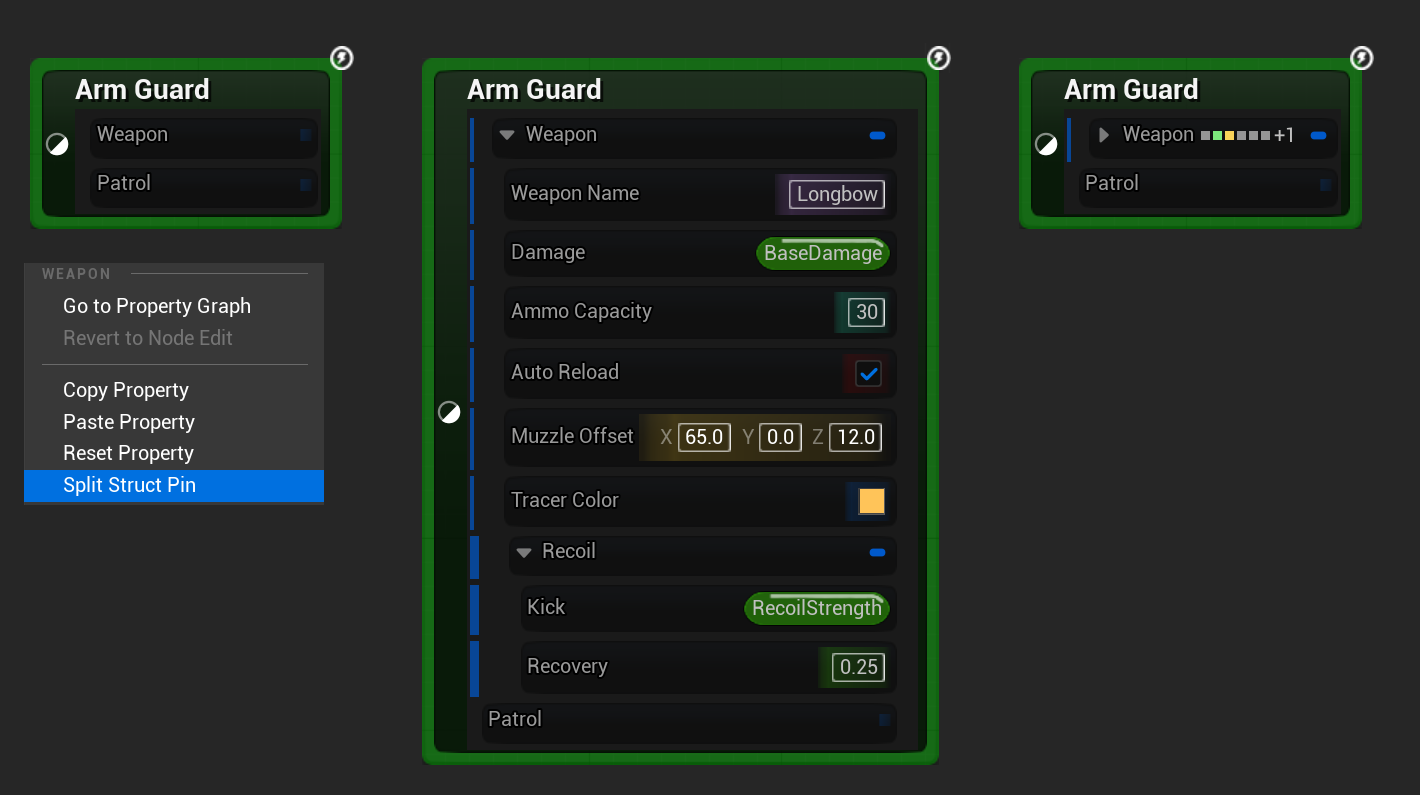
Struct properties exposed on a state node can be split into one sub-pin per member. Each sub-pin has its own default value, can be wired on its own, and keeps its value when the construction script runs again.
Splitting and Recombining
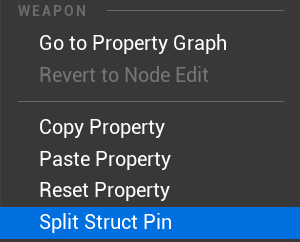
Right-click a struct property and choose Split Struct Pin to expose its members as individual sub-pins. Choose Recombine Struct Pin on any sub-pin to collapse them back into a single struct row. Whether a property is split is saved on each node, so splitting it on one node does not change other nodes that use the same class.
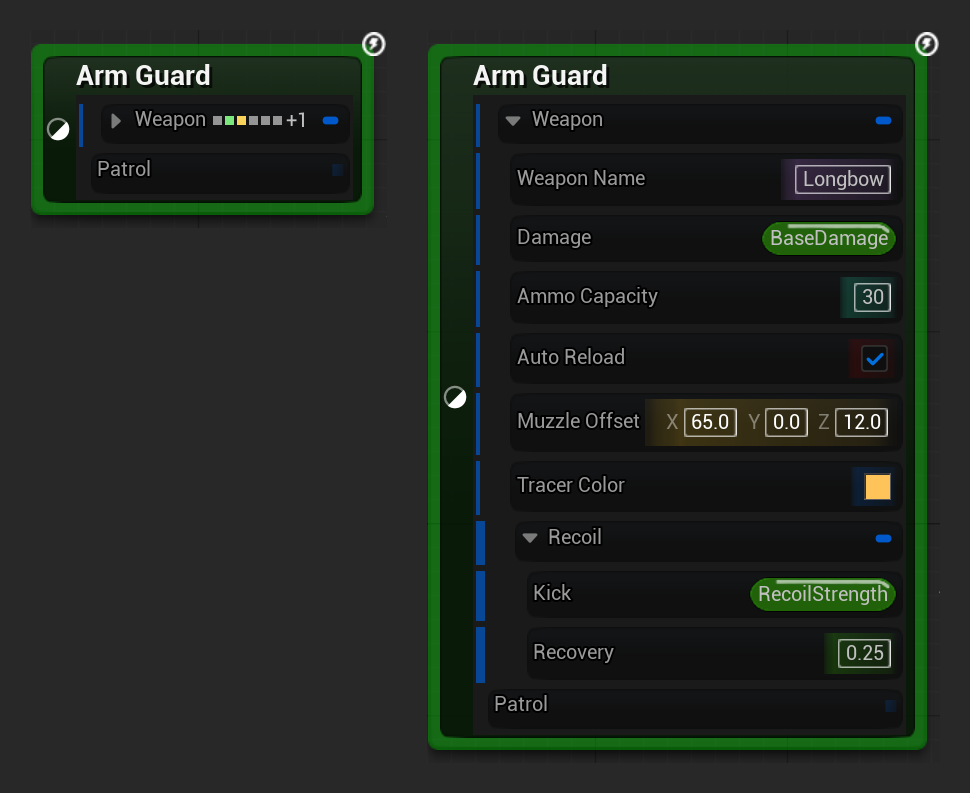
The struct header row stays interactive while split. Click its chevron to collapse the sub-pins without losing the split. A row of small dots on the header shows which sub-pins hold a default value, an edited value, or a wired connection. Up to 6 dots are shown, and any further members are counted as +N.
Per-Member Defaults
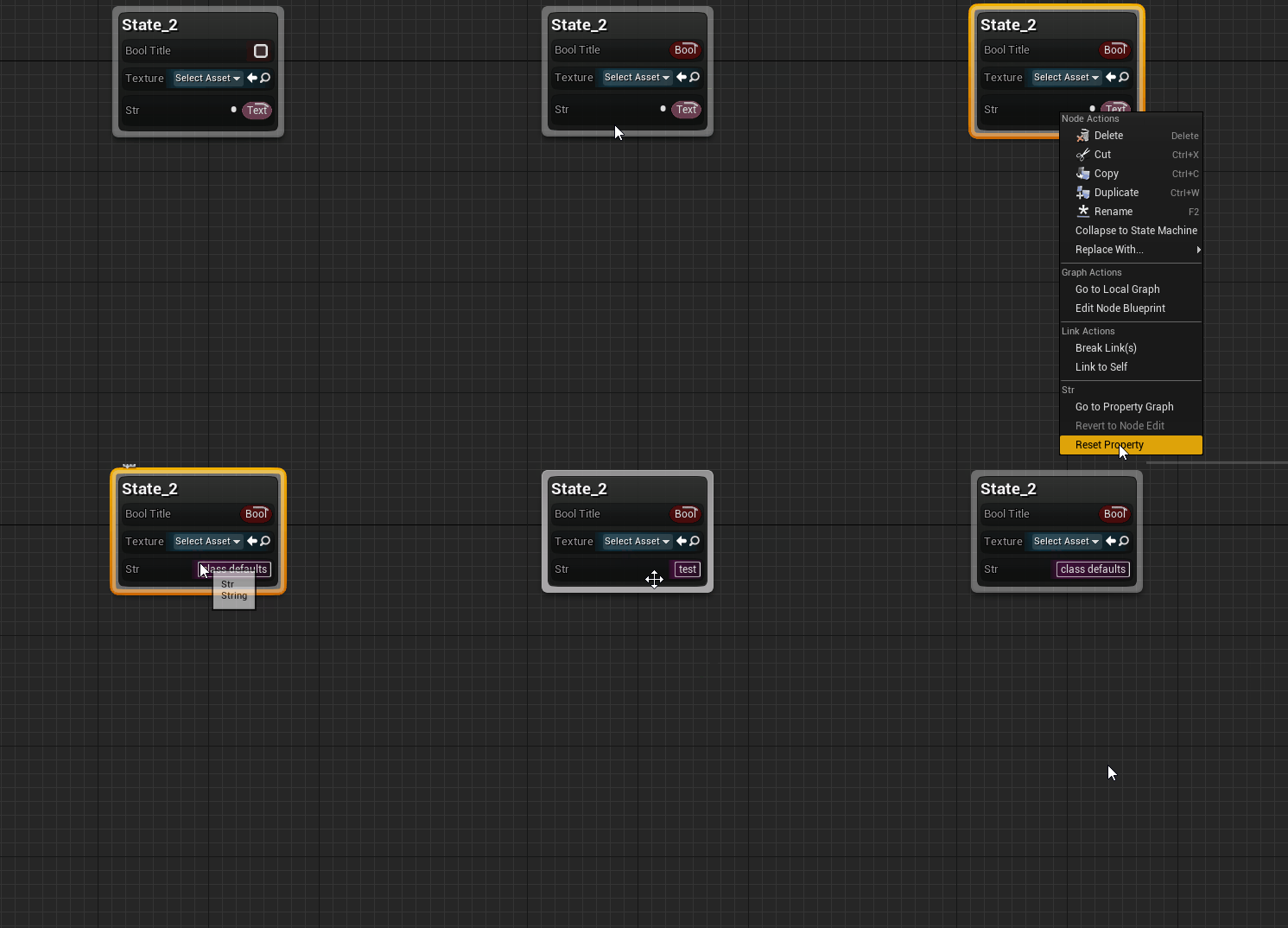
Each sub-pin has its own default value, which starts as the value set on the state class. Once you edit a sub-pin on the node, it keeps your value even if the class default changes later. Choose Reset Property on a sub-pin to return it to the class default. The sub-pin then follows the class default again until you edit it next.
Struct Arrays
Arrays of structs show one row per element, and each element can be split on its own. The header buttons, the element dropdown, and the drag handle work the same as for any other array. Each element keeps its own split state, default values, and wiring when elements are inserted, deleted, or reordered.
Nested Splits
A member that is itself a struct can be split again. For example, split an FTransform, then split its Translation member to expose X, Y, and Z while Rotation and Scale stay as single rows. Sub-pin defaults and wiring are kept when a parent struct is split or recombined.
Forcing Split with ShowOnlyInnerProperties
The C++ UPROPERTY meta meta=(ShowOnlyInnerProperties) forces a struct property to always render as its inner sub-pins, with no struct header row and no Split / Recombine context-menu actions. See ShowOnlyInnerProperties for the full behavior and the distinction between top-level and nested declarations.
Drag and Drop
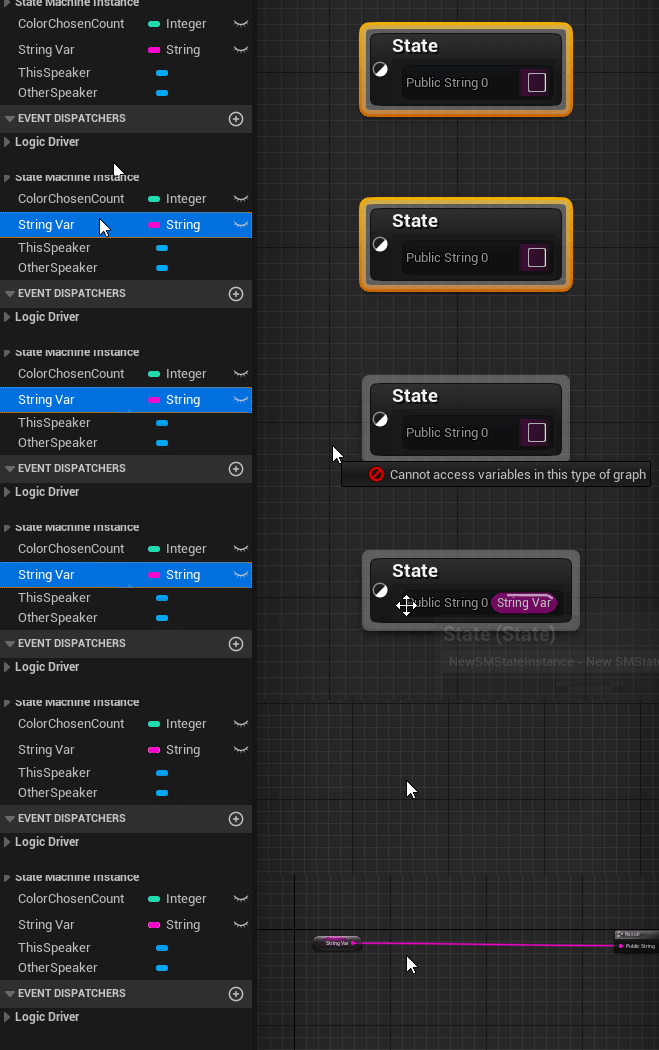
Variables or pure return functions within the blueprint can be drag and dropped onto the node. They will be automatically placed and wired on the variable graph.
Copy and Paste
Exposed graph properties can be copied and pasted, both from the property node's right-click menu in the graph and from the property row's context menu in the details panel.
- A paste transfers the source property's authored default value. Within the same editor session it also restores the property's authoring graph (any wired logic); after restarting the editor, paste falls back to the default value only.
- The destination must match the source's pin type and direction. Read-only properties cannot be pasted into, and a mismatched paste is rejected with a warning.
- Array elements can be copied and pasted individually; the context menu labels the action with the element index.
- Text Graph properties copy only their evaluated text.
Default Values
Exposed variables have special handling to automatically read and set default values of the node instance archetype. Generally blueprint pins don't support this behavior.
- Default values will behave similar to details panel defaults.
- If the node default value hasn't changed and you adjust the class default value, then the default value will update for the node.
- Once the node default value has been modified it will no longer be updated if you adjust the class default value.
- Connecting a blueprint node to the
Resultpin (such as through drag & drop) will not set a default value. This requires graph evaluation at runtime. - Some variables may not allow direct default editing. Structs can be split into per-member sub-pins (Struct Properties) so their members can be edited inline.
Why can't some defaults be edited?
The engine doesn't always have blueprint pins for all types of variables.
If a variable type doesn't allow default values entered when using it as a Setter in a normal blueprint, then it won't allow default values entered in a state node either unless Logic Driver has provided a custom implementation.
Custom Logic Driver Pins
Logic Driver provides custom pins for:
Soft Actor Referencesallowing a soft actor reference be picked.-
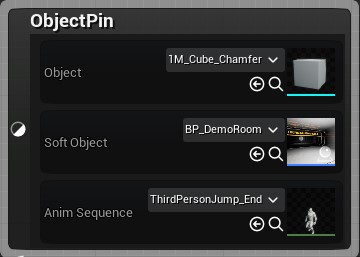
Object Pinsallowing thumbnails to be viewed and sound files played.Thumbnails
-
Struct Propertiescan be split into per-member sub-pins so defaults can be authored inline. See Struct Properties.
Reset to Default
Choosing Reset Property will reset the node default value to current class default value. Updating the class default value will again update the node default value providing it hasn't changed.
Advanced Customization
Change the appearance of the widget, hide variables, or set them to read only.
-
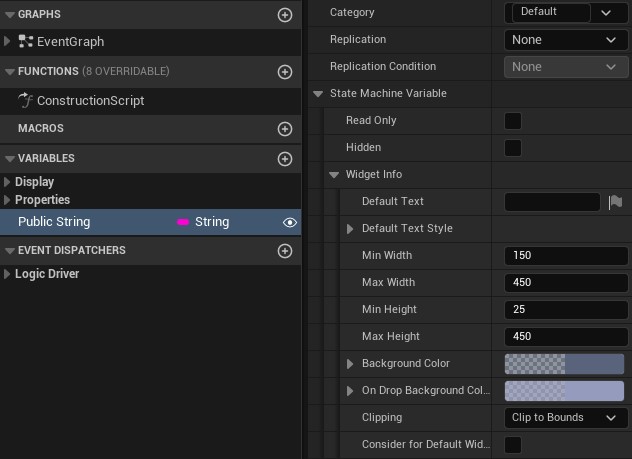
Click on the variable and configure settings in the variable details window.
-
Add to the ExposedPropertyOverrides array from the C++ constructor.
This will set the class defaults for any derived node class blueprint children.
- Under the class default settings of your state class, go to the
PropertiesCategory. -
Under
Exposed Property Overridesadd an element and set theVariable Nameto the variable you want to override.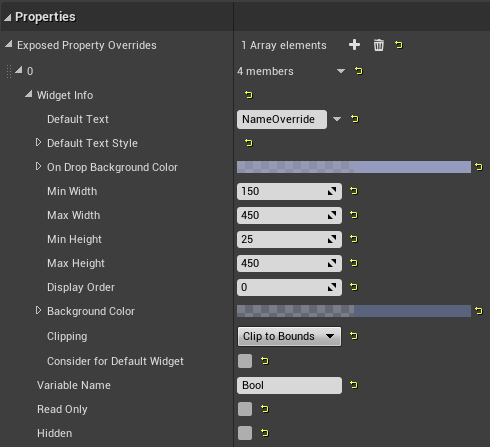
Widget Appearance
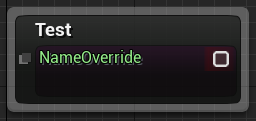
Modify the properties under Widget Info to customize how the property should be displayed. Some configuration items may not have an effect on all variable properties and are reserved for special properties, such as TextGraphProperties.
Read Only Variables
Selecting Read Only will prevent instance values from being edited in state machine graphs. You can also mark the variable Blueprint Read Only although this has different effects.(1)
Read only variables won't have their graphs compiled into the final blueprint and won't be evaluated at runtime. Only the values set in the node instance will be used, such as from class defaults or by using the construction script.
-
BlueprintReadOnlyspecifier can't be modified from construction scripts and prevents all blueprint setters.Read Onlythrough Logic Driver customization only prevents a variable from being edited on the node. It could still be edited through blueprint setters and can be toggled in construction scripts.
Hidden Variables
Setting Hidden will prevent the node instance from displaying the property, but the graph still exists and will be compiled into the blueprint. This can also be toggled through editor construction scripts. (1)
- This is not the same as specifying HideOnNode which prevents a variable graph from ever being created and cannot be toggled.
Conditional Read Only and Hidden (EditCondition)
Both states above can also be driven declaratively from a variable's value using the engine's EditCondition metadata. When the condition is false the variable becomes read only on the node, or hidden if the property also carries EditConditionHides. The condition re-evaluates as the gating values change, so a variable can lock or unlock as the user edits the node.
Precedence is per variable: if a construction script or an Exposed Property Override already set a variable's read only / hidden state, that wins and the EditCondition result is ignored for that variable. EditCondition only fills in variables neither of those touched.
Property Specifiers
See Node Property Specifiers for all supported C++ property specifiers.