Behavior & Rules  

Rules can be assigned to each node class to define which connections are allowed and where nodes can be placed. Their purpose is to automate workflow and help designers understand what should be allowed and what isn't.
They are calculated when opening the state machine graph context menu or when dragging connections. Rules are only lightly enforced during editor time and have no effect at compile or run-time.
They can be configured in the details panel for the class defaults for all types of node classes.
States & Conduits
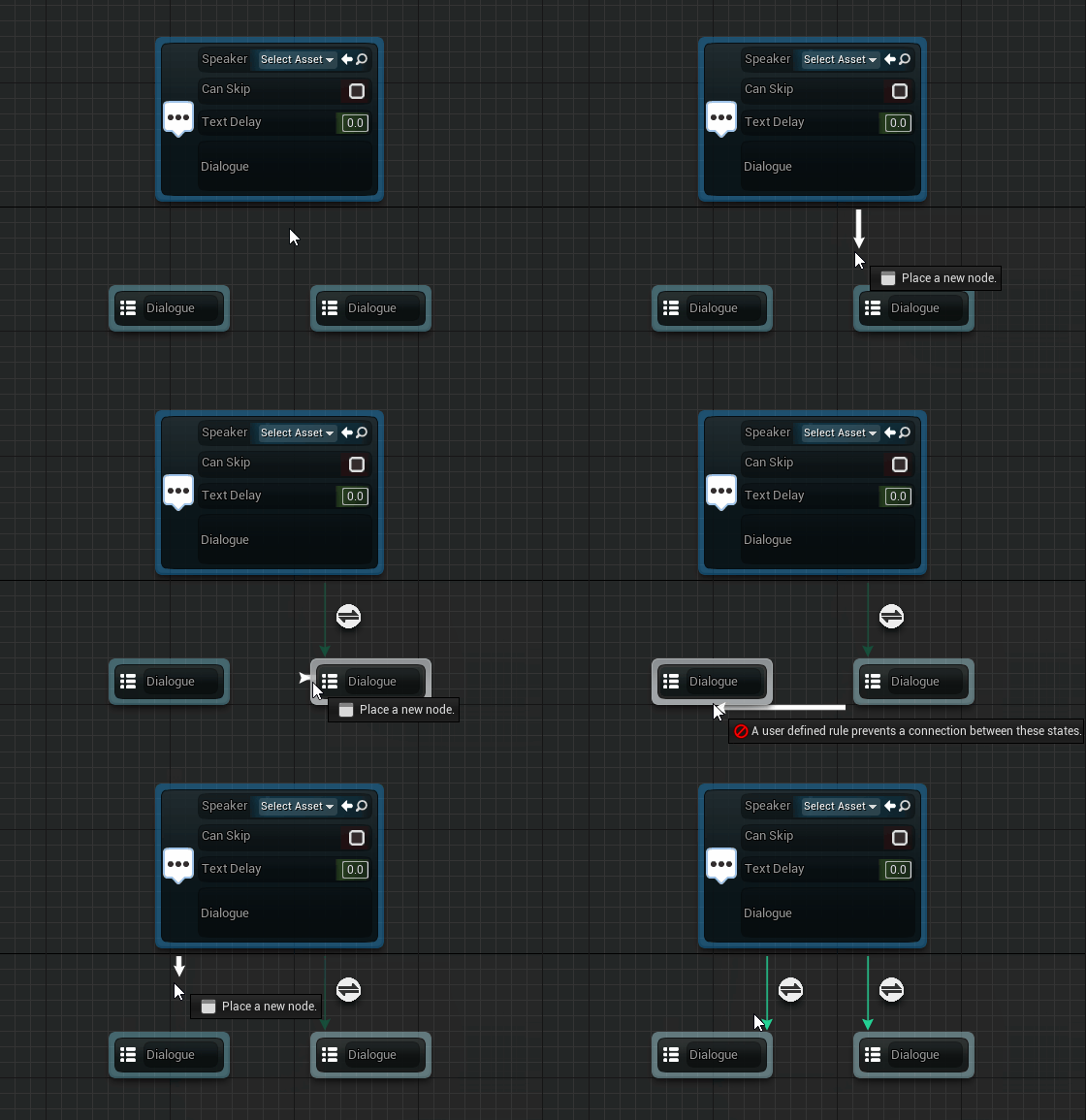
State rules specify whether a state class can be connected to another state. If the rule fails a connection won't be made.
The advanced option Hide from Context Menu if Rules Fail will restrict the node from showing up in the right click context menu unless the rules pass. In the example project, BP_DialogueChoiceNodes are only allowed when branching from a normal BP_DialogueNode.
Transitions
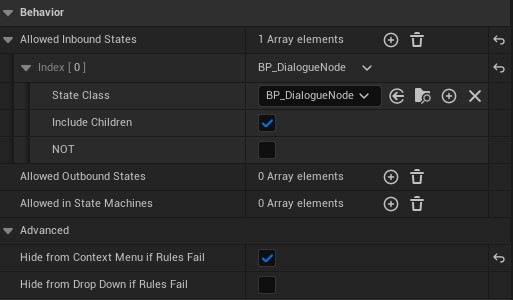
Transition rules specify whether that transition will be automatically placed or not.
In this example connecting a BP_DialogueNode to any other node will automatically place this transition class.
State Machines
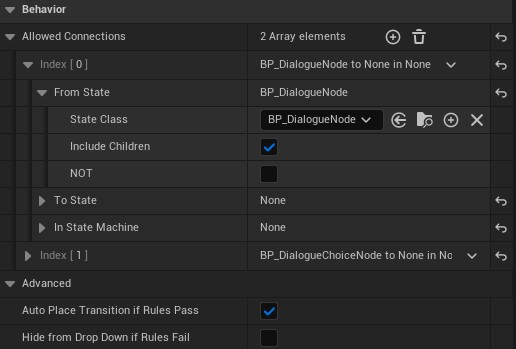
State machine node classes allow you to decide what nodes are allowed when editing this type of state machine. In the example project, the BP_SkillTree state machine is assigned the state machine node class BP_SkillStateMachine which only allows BP_SkillNode and default state classes to be placed.
- Calls to parents and references can also be restricted.
Default Sub State Machine Classallows a default node class to be assigned when creating a nested state machine or collapsing states to a state machine.- ConnectionRules impact when this state machine is used as a nested FSM state connected to other states. They operate the same as normal state behavior.
Assign Default Node Classes
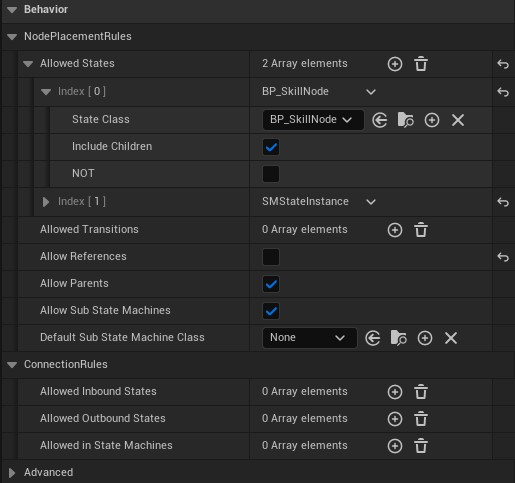
Notice how SMStateInstance is assigned to Allowed States. This is so the default State can be added. This is needed because BP_SkillNode is assigned, which automatically prevents all other node types from showing up, including the defaults.
To allow adding empty state machines, we would need to add SMStateMachineInstance to Allowed States and make sure Allow Sub State Machines is checked.
Misc
- Default classes can also be considered for rules.
- SMStateInstance (states)
- SMConduitInstance (conduits)
- SMTransitionInstance (transitions)
- SMStateMachineInstance (state machine classes)
- Include Children considers the class in question and all children.
- NOT will NOT the current rule. (ie consider all classes except the current class)
Shortcuts
Nodes can be spawned by keypress through config file configuration.

- Open
BaseEditorPerProjectUserSettings.iniunder\YourEngine\Engine\Config - Find or add the section
LogicDriverSpawnNodes - Add
+Node=(Class=[YOUR_NODE_CLASSPATH] Key=YOURKEY Shift=false Ctrl=false Alt=false)for the node you want to spawn. - In a state machine graph hold down the shortcut key while you left click to create the node.
The class path format depends on whether the class is native (C++) or Blueprint-based.
Native Classes
Native classes use the following format:
Blueprint Classes
Blueprint classes use the asset path, with the generated class name appended. The class name is the asset name followed by _C:
Note
The _C suffix refers to the generated Blueprint class. Omitting it will reference the Blueprint asset instead of the class and will not work where a class reference is required.
[LogicDriverSpawnNodes]
# Any state node
+Node=(Class=/Script/SMSystem.SMAnyStateInstance Key=A Shift=false Ctrl=false Alt=false)
# Standard state
+Node=(Class=/Script/SMSystem.SMStateInstance Key=S Shift=false Ctrl=false Alt=false)
# Standard state machine
+Node=(Class=/Script/SMSystem.SMStateMachineInstance Key=S Shift=true Ctrl=false Alt=false)
# Custom blueprint state
+Node=(Class=/Game/StateMachines/ClassesRoom/CustomNodes/PrintTextState.PrintTextState_C Key=P Shift=false Ctrl=false Alt=false)
# Custom native state
+Node=(Class=/Script/SMSystemTests.SMStatePropertyResetTestInstance Key=V Shift=false Ctrl=false Alt=false)
Shortcut Rules
The rules system still applies when spawning the state. However, the from pin connection is not available in this case. If you are dragging from a state that would normally filter out the shortcut state, the state will still spawn, but the connection will not be created if it is not allowed.