[WIP] Dialogue System Example Blueprint Implementation  [Deprecated]
Implementation Overview
- This is somewhat outdated now, the project this guide was based off of has been updated to be more modular using components and also handles player choices. This guide is being left as a reference and may be updated in the future.
The goal is to create a functional dialogue system using the ThirdPerson template where each individual character contains their own dialogue state machine.
The player should be able to interact with NPCs to start a dialogue.
Once implementation is complete only state machines will need to be used to design conversations just by editing text directly on nodes.
You can download the project used for this guide from GitHub. Project is newer than this guide!
Blueprint Prerequisite
We will need to setup normal blueprints before creating our state machine implementation.
- UMG Widgets
- For displaying the dialogue
- Dialogue Manager
- For storing and retrieving the dialogue UMG widget
- Should be global, the Game Mode will be used for this implementation
- Base Character Blueprint
- Needs to be modified to start conversations, store the dialogue state machine
- Input Handling and Third Person Character
- ThirdPersonCharacter needs to listen for input and find NPCs to talk to
UMG Widget
The UMG widget is responsible for rendering the text to the user
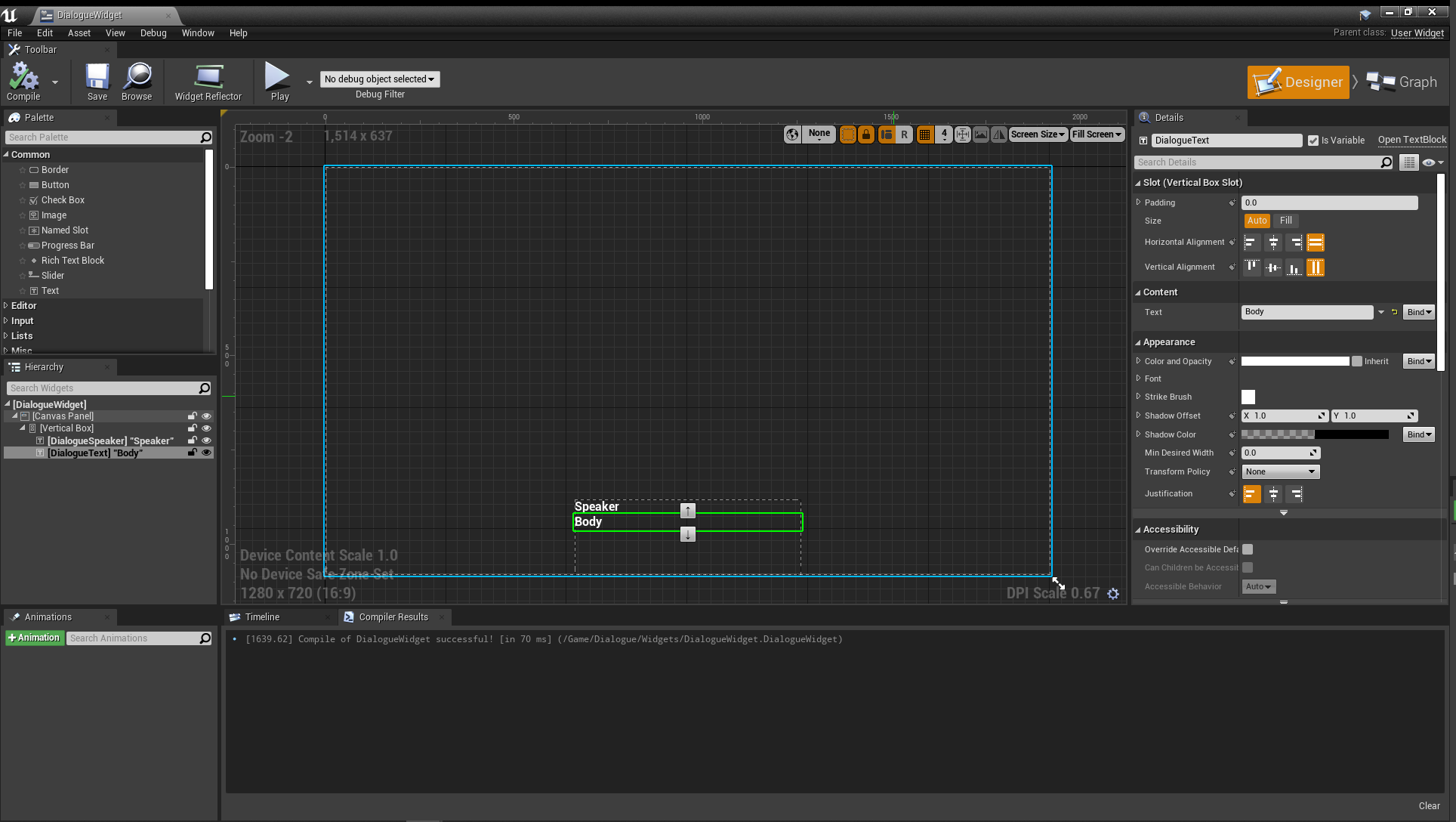
- Create a new UMG widget called
DialogueUIfor displaying the speaker name and the dialogue text body. - The textblocks should be variables.
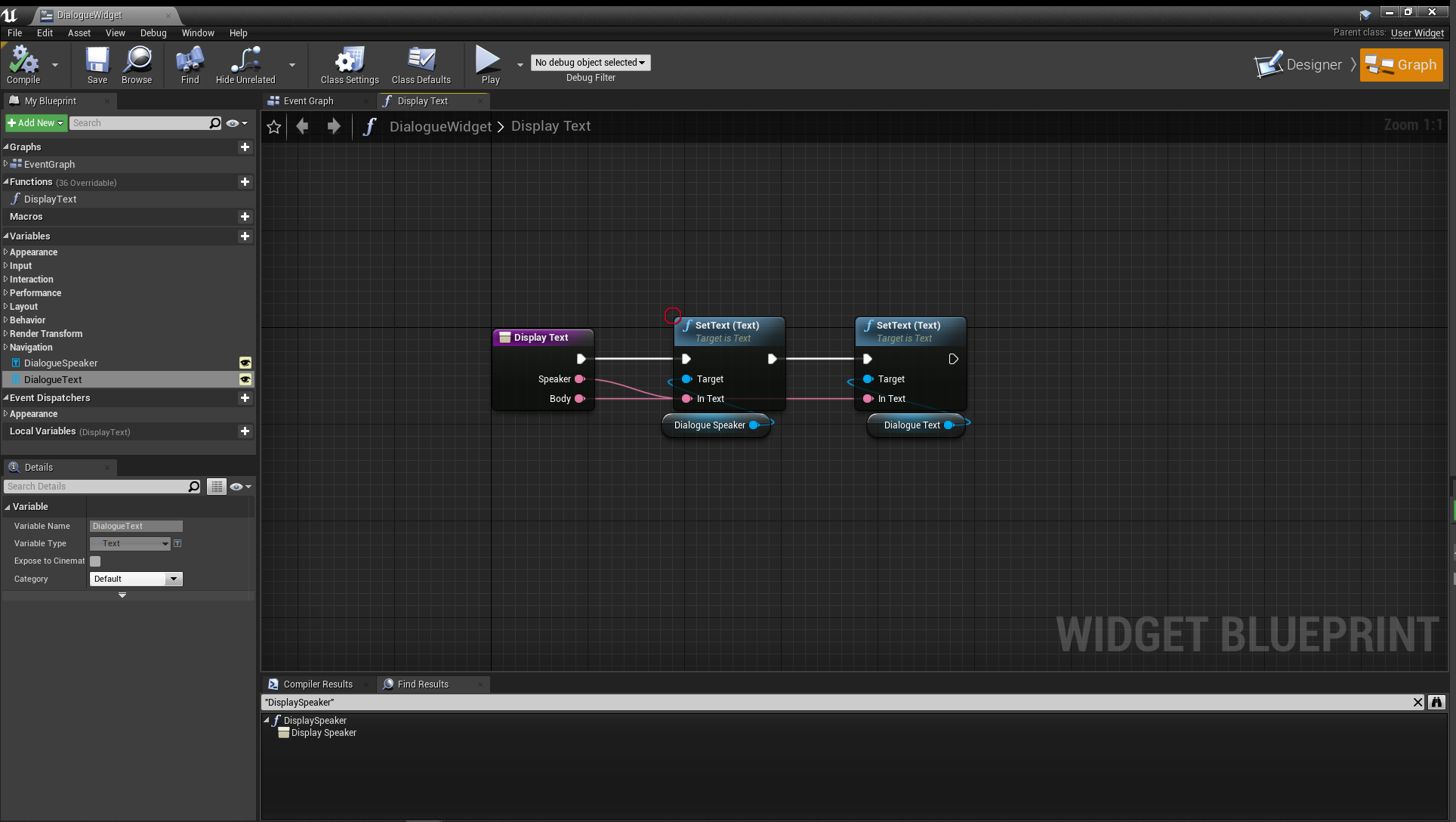
- Create a function
DisplayTextthat sets the dialogue text and speaker text.- We use a function rather than binding because binding is less efficient.
- In this example there is a vertical box which sets the maximum size for the dialogue text.
- For assistance creating UMG UI please see the official UE documentation.
Dialogue Manager
A global manager for accessing the dialogue UI. This is in the game mode for this implementation.
- Open the ThirdPersonGameMode blueprint.
- Add a new variable of type
DialogueUI. - Create two functions,
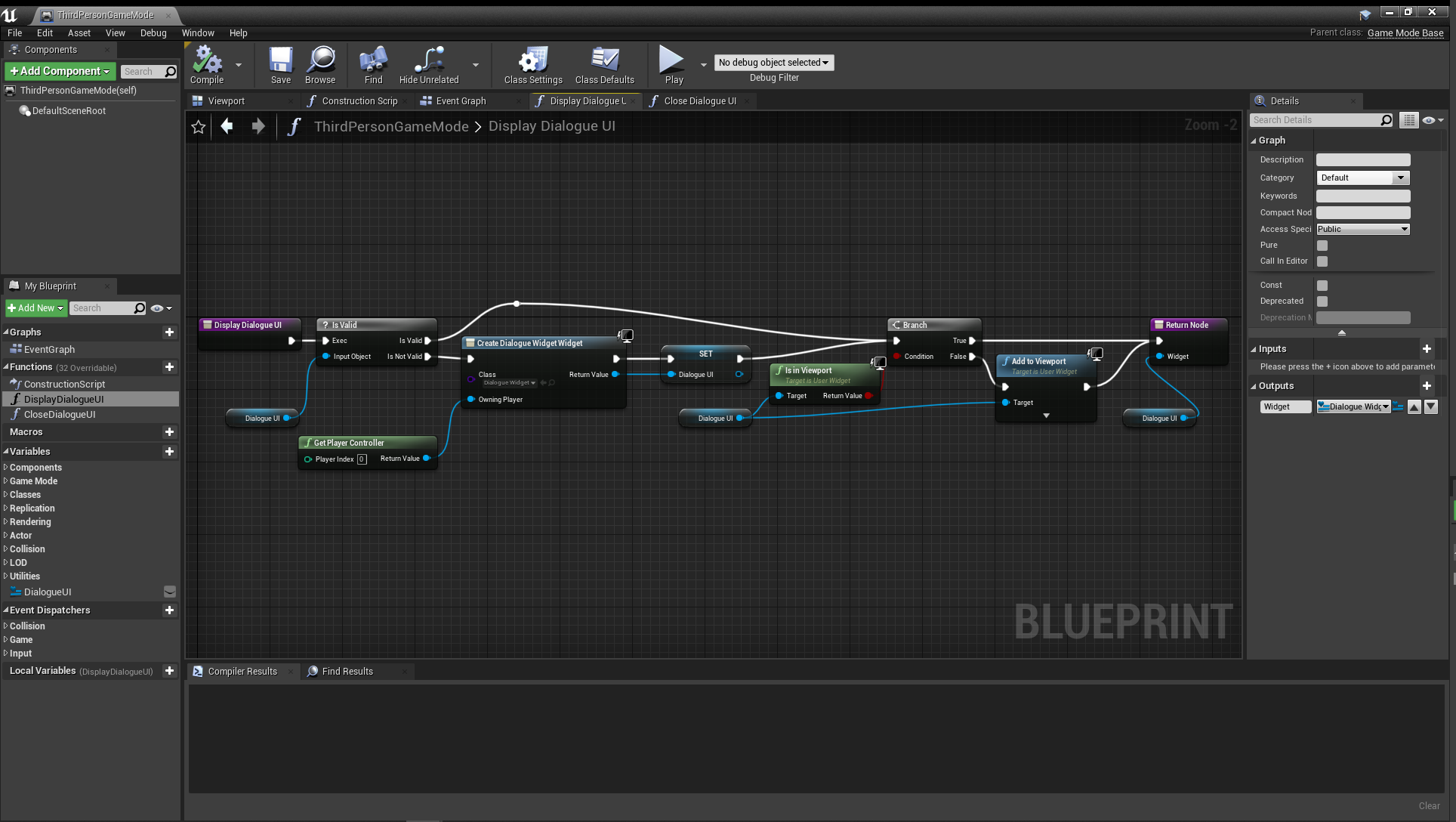
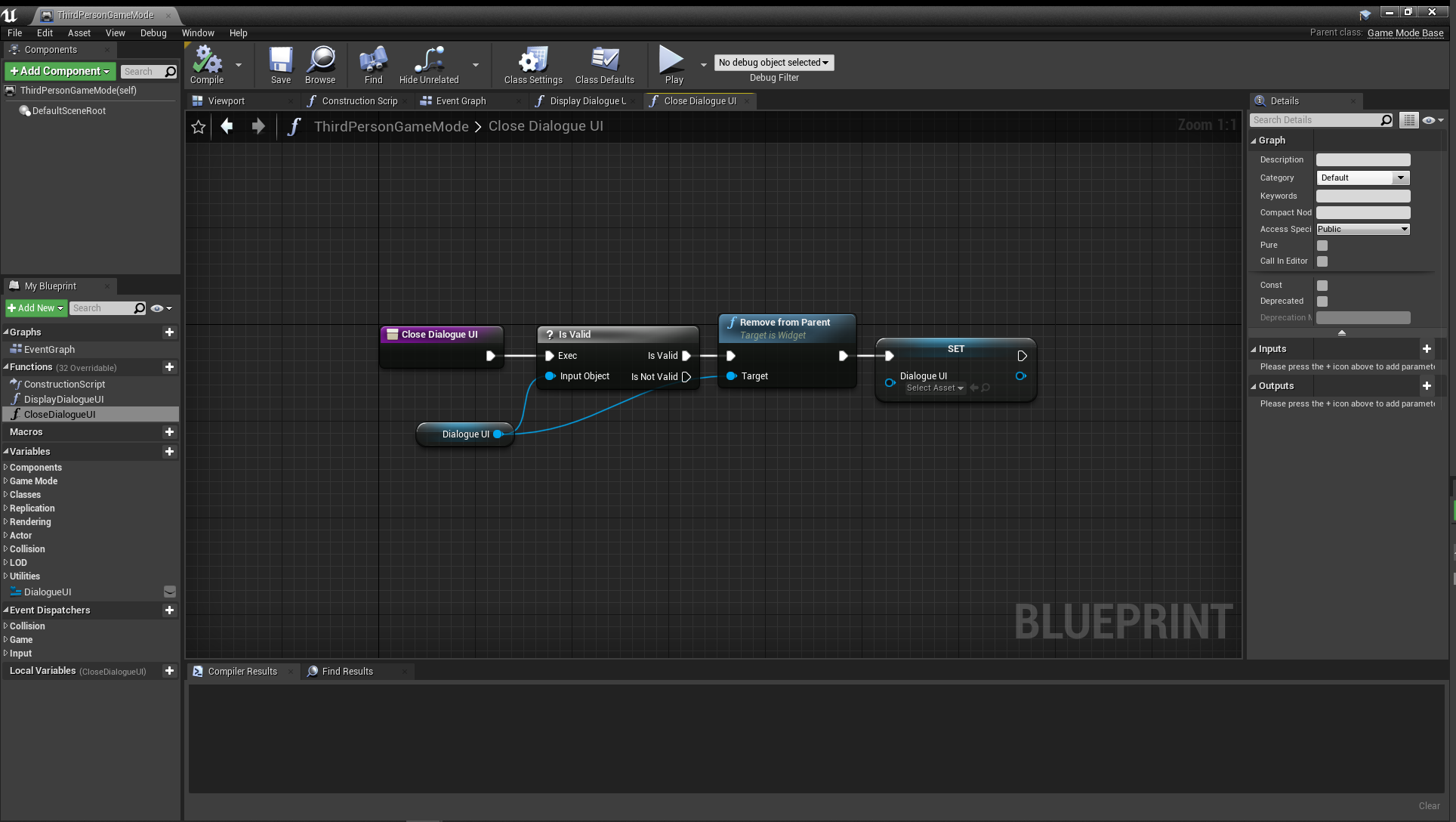
DisplayDialogueUIandCloseDialogueUI. DisplayDialogueUIis responsible for creating the widget if it doesn't exist, adding it to the viewport if it isn't already there, and then returning the dialogue widget.
CloseDialogueUIremoves the widget from the viewport and clears the variable.
Base Character Blueprint
We're going to use a new base character blueprint as a parent between our NPCs and player characters to share common functions. You could use an interface for this as well, but most of this functionality just needs to be defined once on a base class.
- Create a new blueprint extending the
Characterclass and call itBaseCharacter. - Add a State Machine Component called
SMDialogue. Leave the component settings default. - Create a member variable of type text
CharacterName. You can default the value toNPC.- Create a pure function
GetCharacterNamewith a return type of text which returns theCharacterName.
- Create a pure function
- Create a member variable of type BaseCharacter with name
CharacterInConversationWith. - Create an event dispatcher called
ContinueDialogue. - Create a function
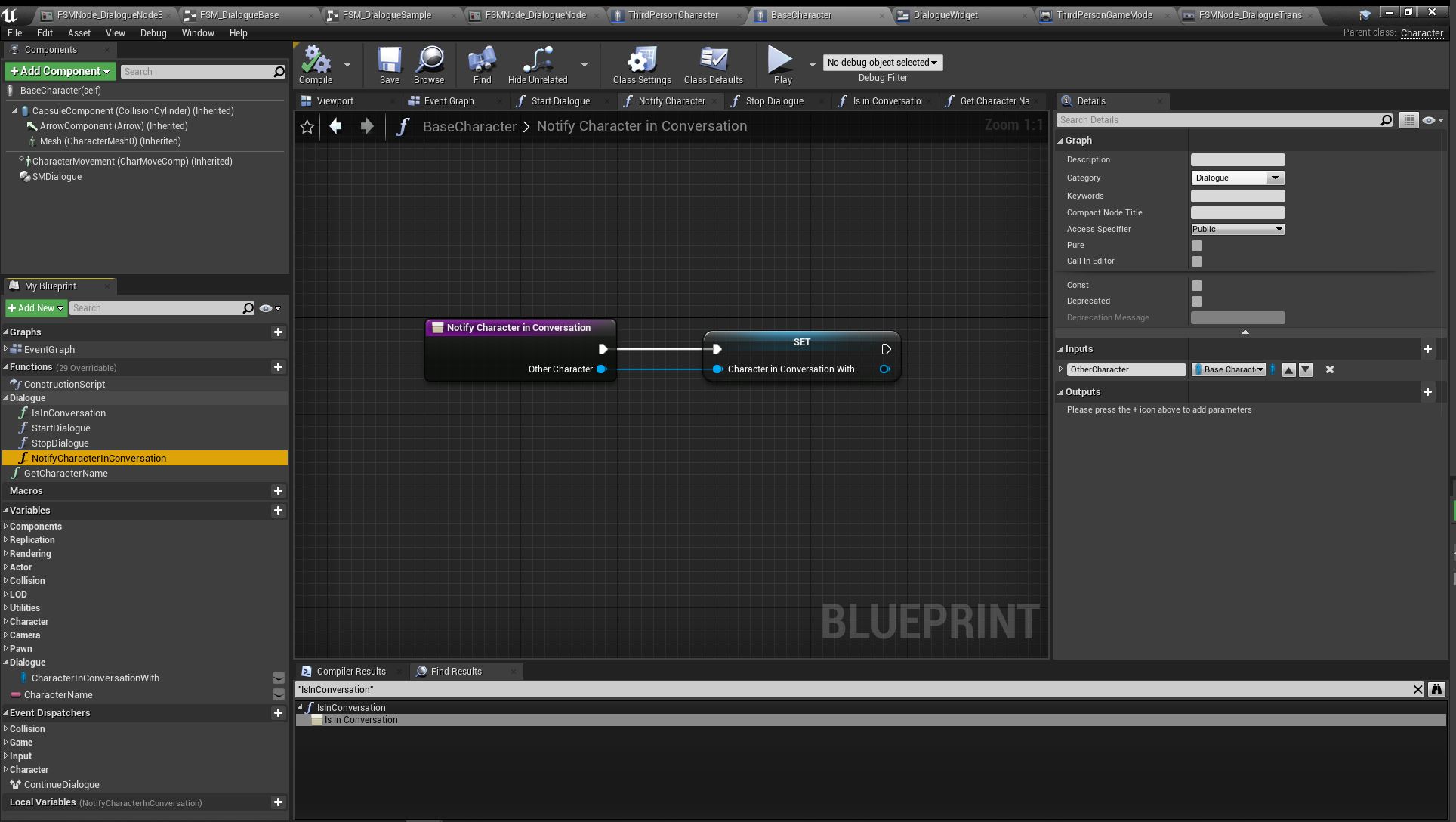
NotifyCharacterInConversationthat accepts a BaseCharacter argument and sets the CharacterInConversationWith
- Create a pure function
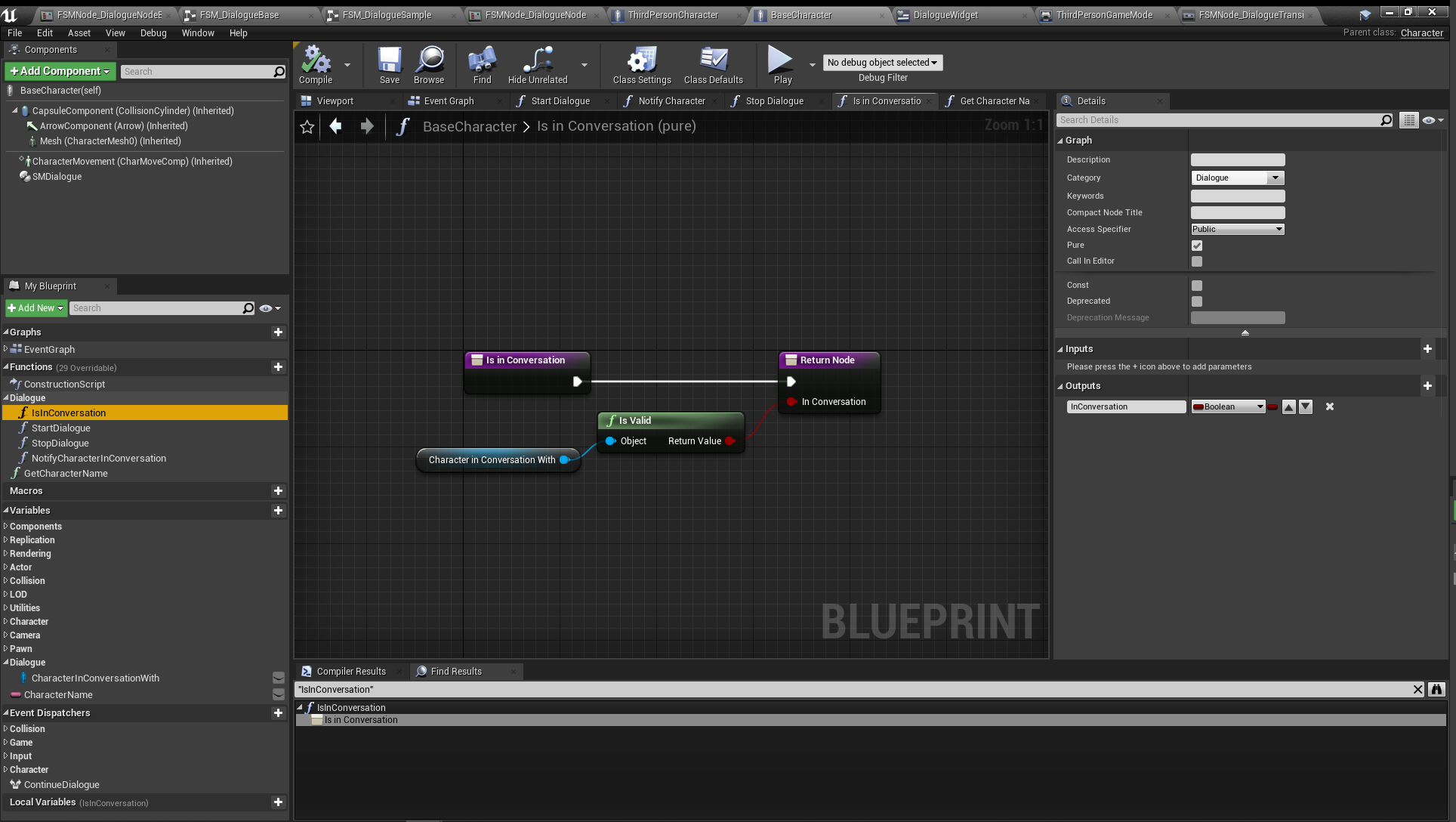
IsInConversationthat checks that theCharacterInConversationWithis valid and returns a bool.
- Create a function
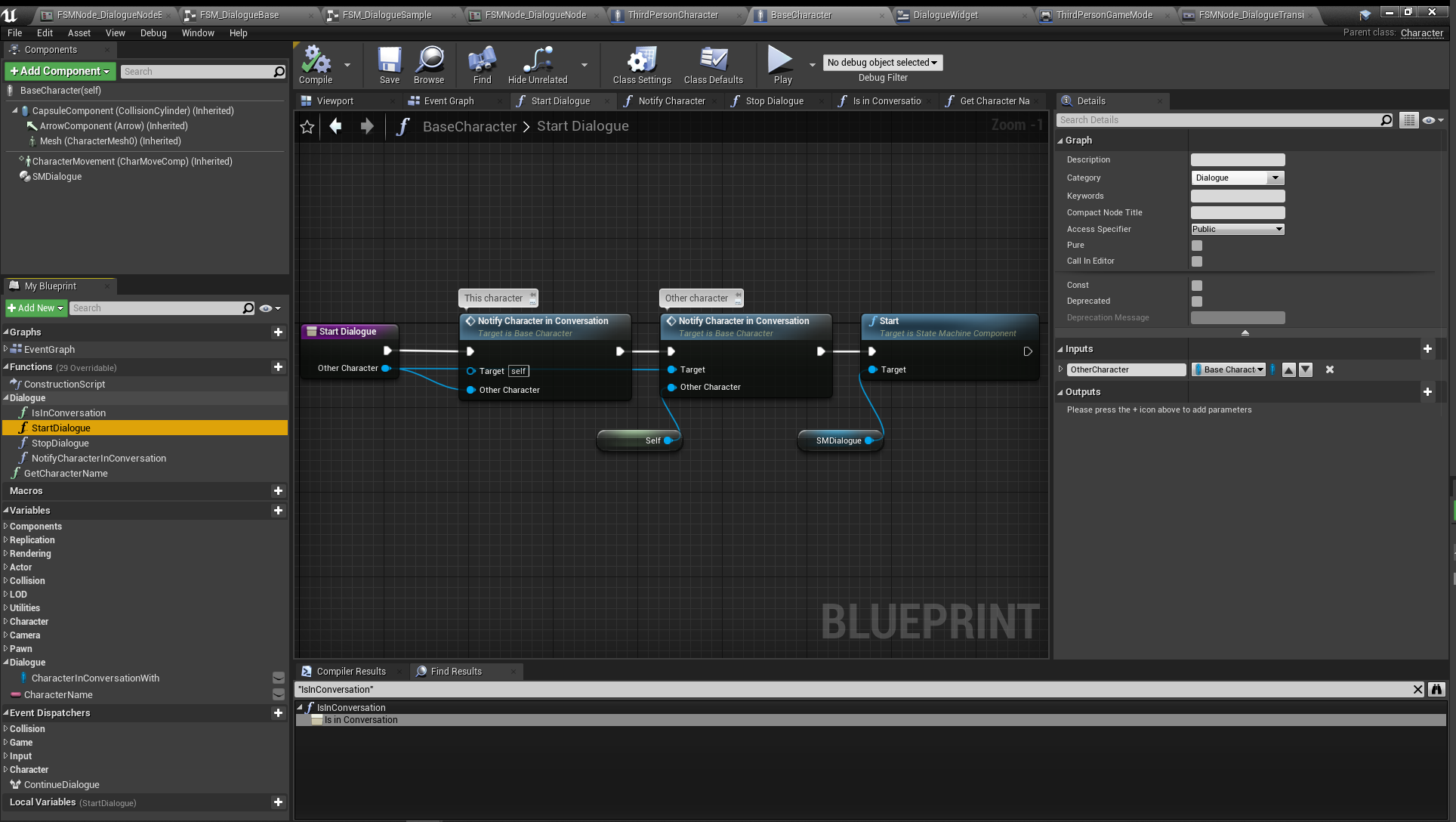
StartDialoguewith a parameter of BaseCharacter.- This will call
NotifyCharacterInConversationboth for this character and the Other Character.
- This will call
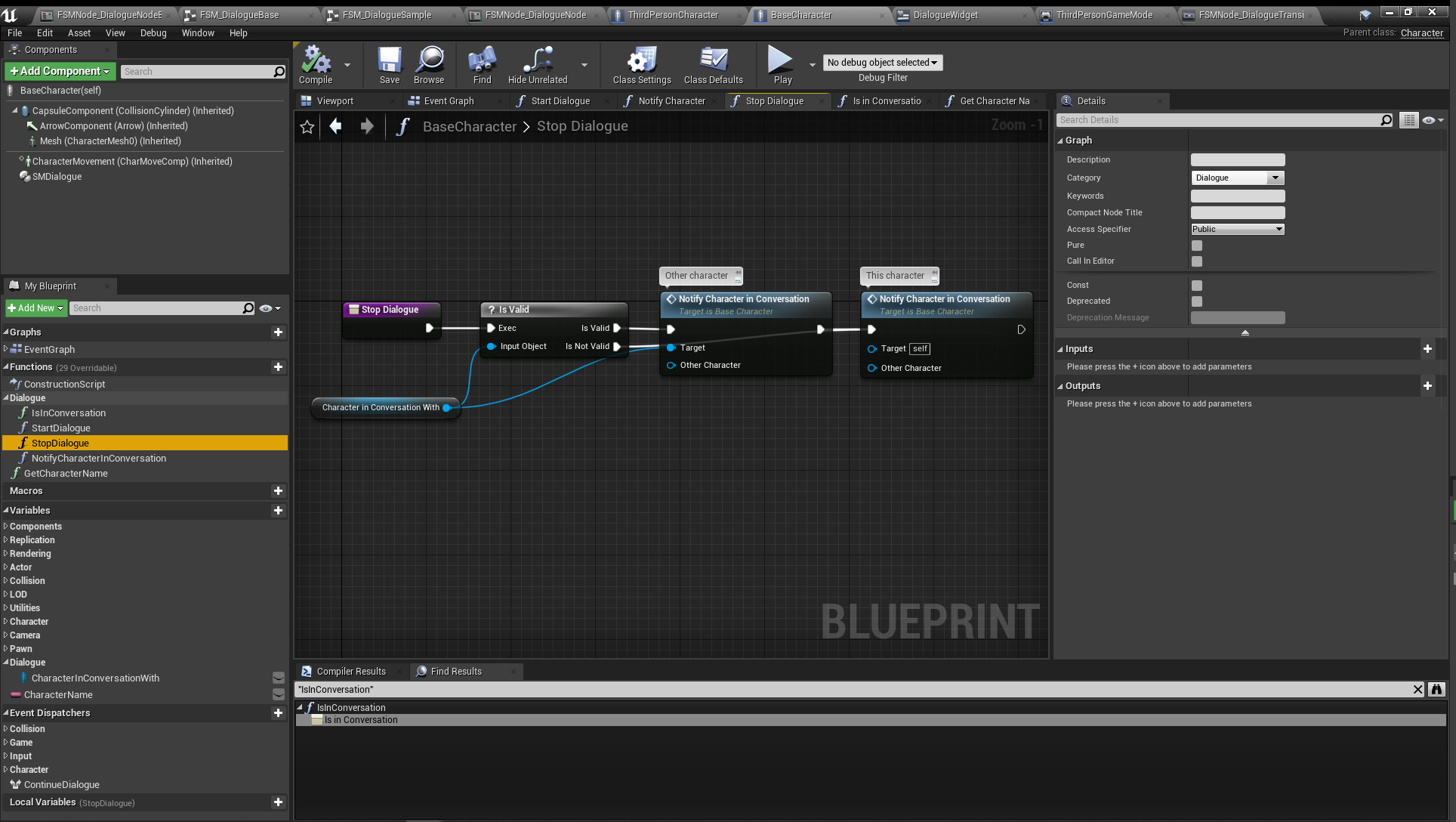
- Create a function
StopDialoguewhich will notify both characters they are no longer in a conversation.
Input Handling and Third Person Character
-
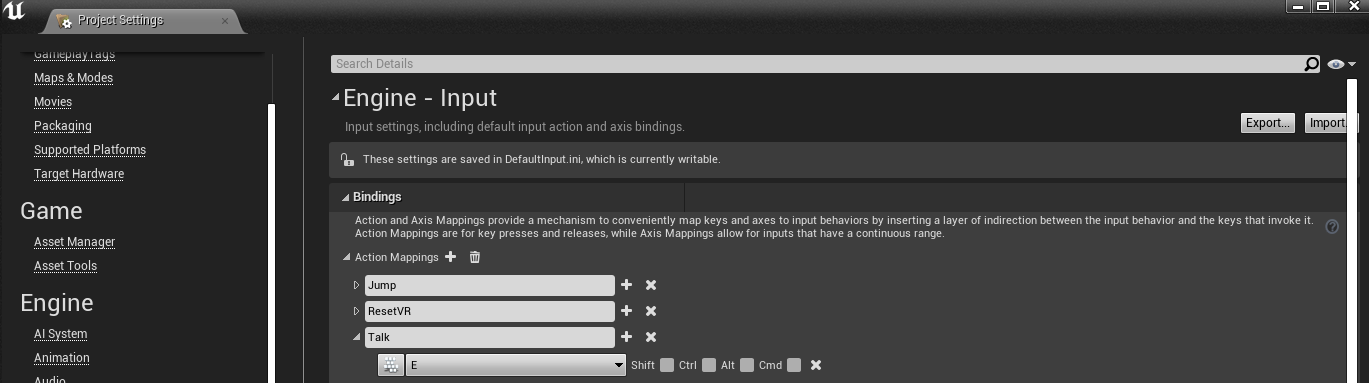
Add an input action to your project called Talk and assign it a key.
-
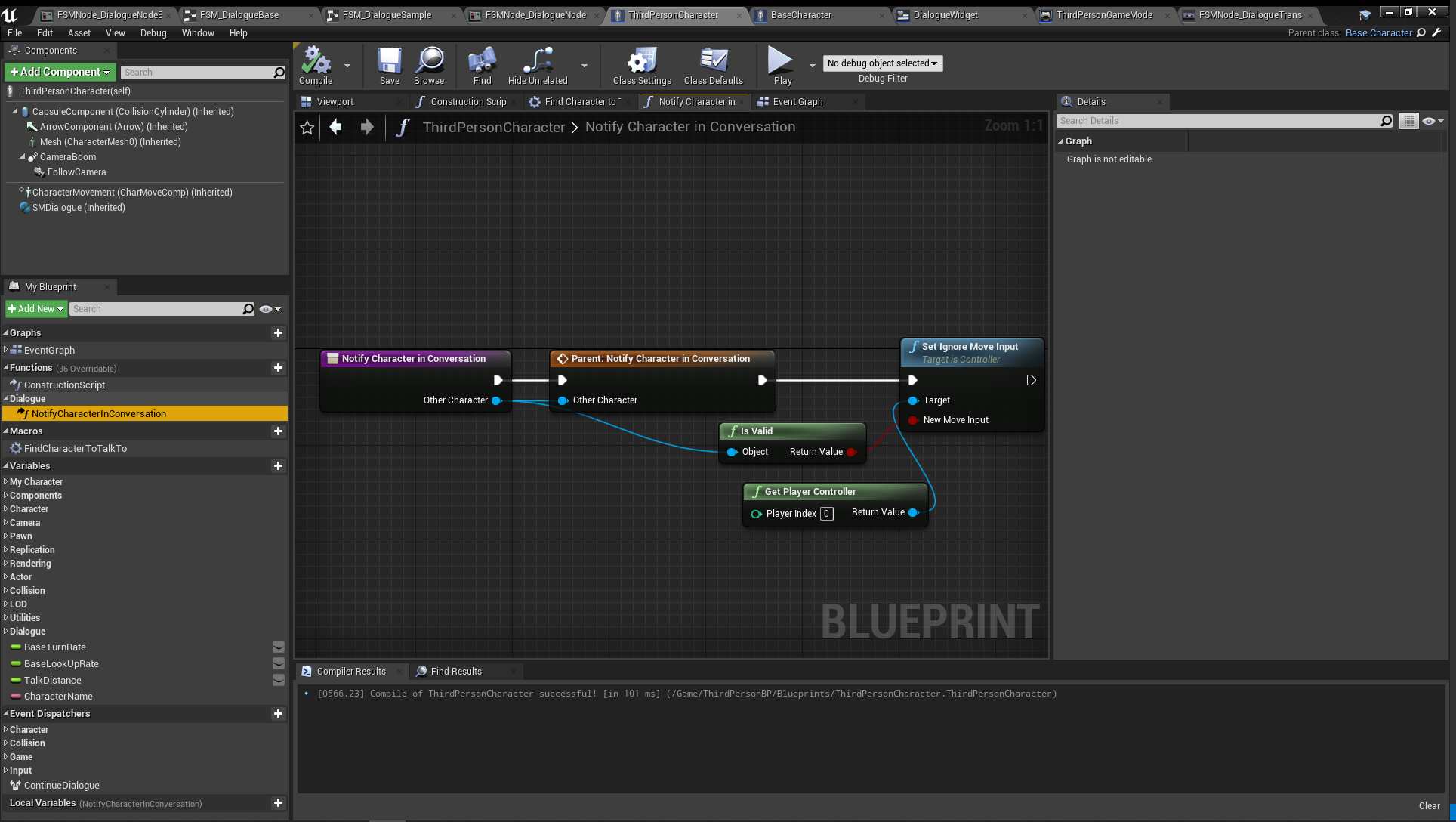
Reparent the
ThirdPersonCharacterblueprint to useBaseCharacter. - Overload
NotifyCharacterInConversation, call its parent, and stop movement if the other character is valid.
- Add a float variable
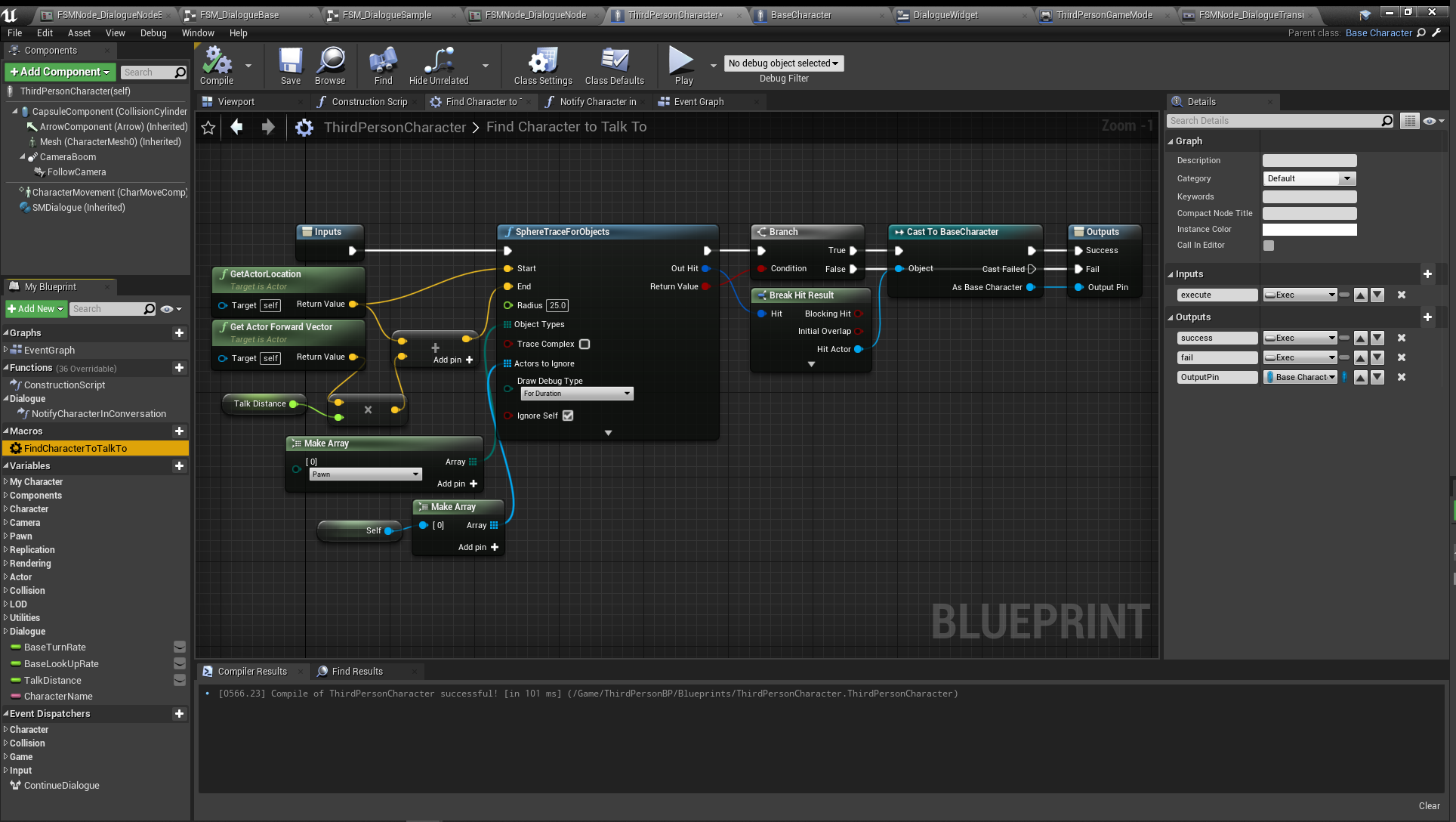
TalkDistanceand set the default to150.0 - Create a new macro
FindCharacterToTalkTo.- This will trace for characters in the direction you are facing within the
TalkDistancerange and return a BaseCharacter on success.
- This will trace for characters in the direction you are facing within the
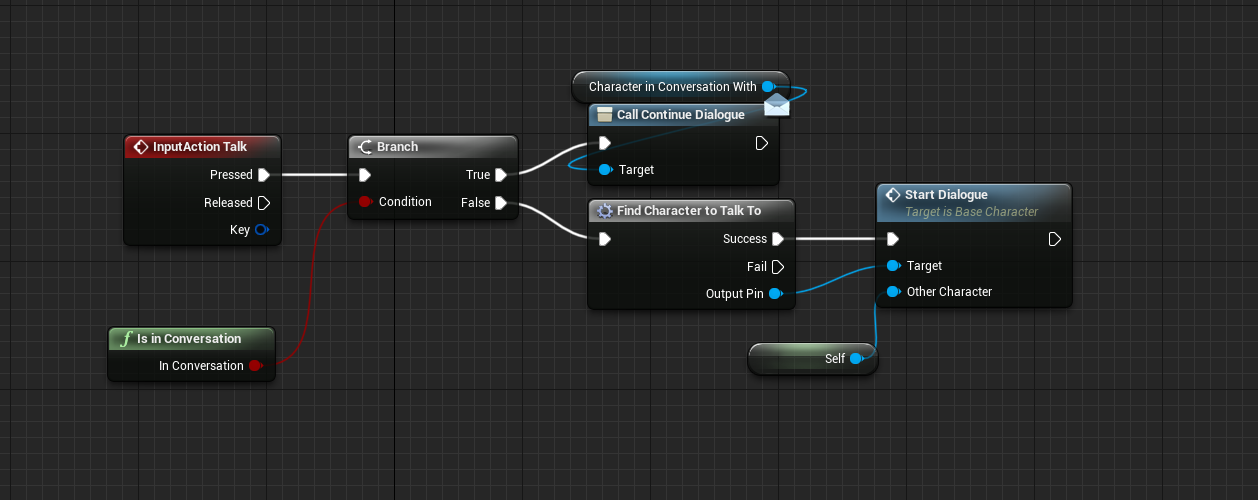
- Finally, in the event graph listen for the input action
Talk. Here we want to either start the dialogue or call theContinue Dialogueevent dispatcher of the other participant.
State Machine Nodes
We need to create several node classes that will be reused in our dialogue state machine graphs. See the Pro Quickstart Guide for creating node classes in Logic Driver.
Base Dialogue Node (State Class)
It's worth creating an abstract base class for dialogue nodes so we can extend it for normal text nodes and eventually choice nodes. Our goal is to make this class effictively own the current dialogue segment, be reponsible for displaying the text, and determine when the state should end.
- Create a state class called
FSMNode_DialogueNodeBase. - Uncheck
Register with Context Menuin class defaults so this node won't show up as placeable in the state machine graph. - Add a variable of
BaseCharactercalledSpeakertype and make it public. - Add a variable of type
SM Text Graph PropertycalledDialogueText.- This is a special Logic Driver variable which creates formatted a text graph on the node.
- It doesn't need to be made public, TextGraphProperties always display on the node.
- Add an event dispatcher:
GoToNextDialogue- We will use this to switch dialogue nodes.
Functions
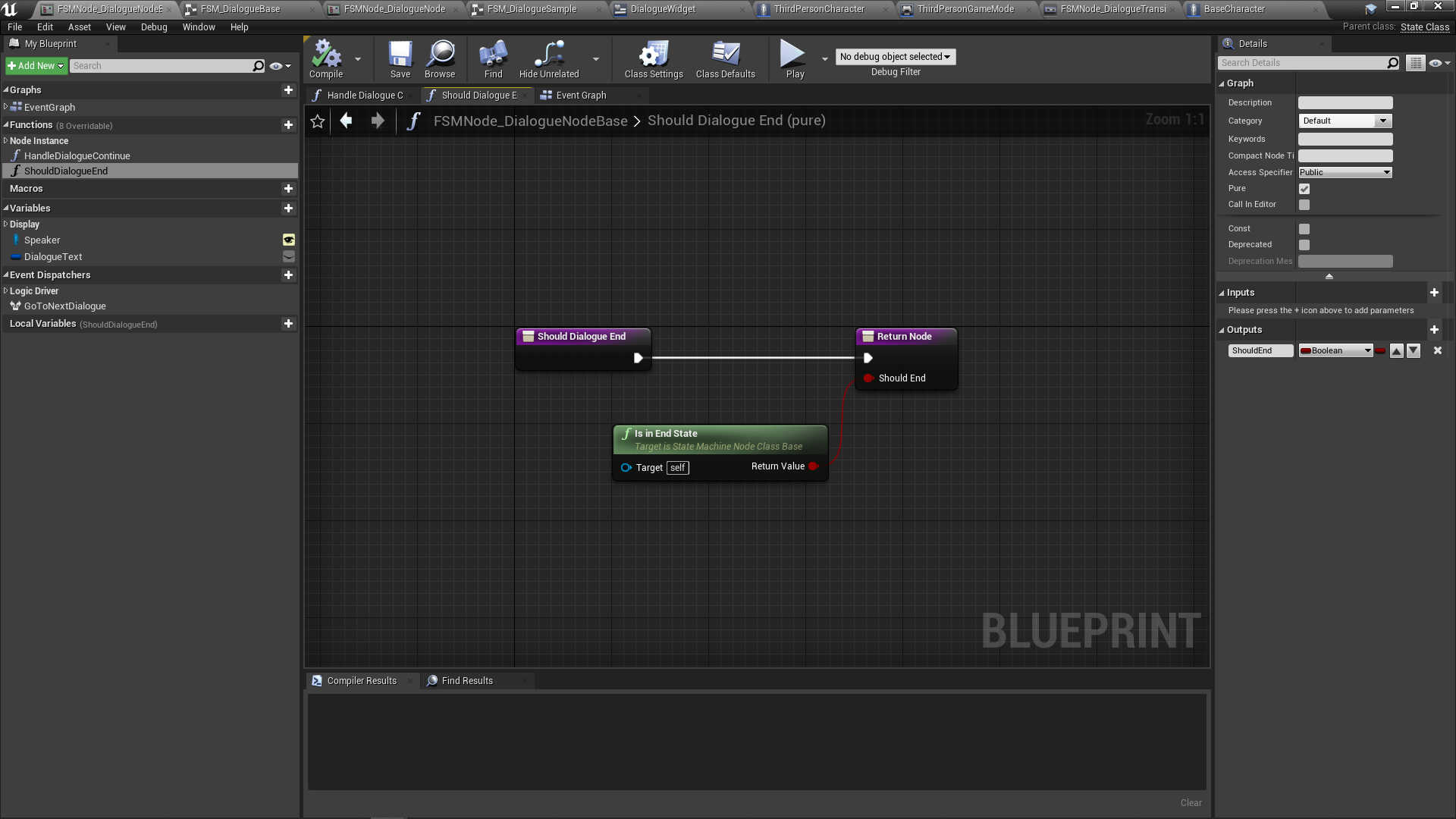
Should Dialogue End
- Create a Pure function with a bool return type called
ShouldDialogueEnd. - For now just check if the state is an end state.
Handle Dialogue Continue
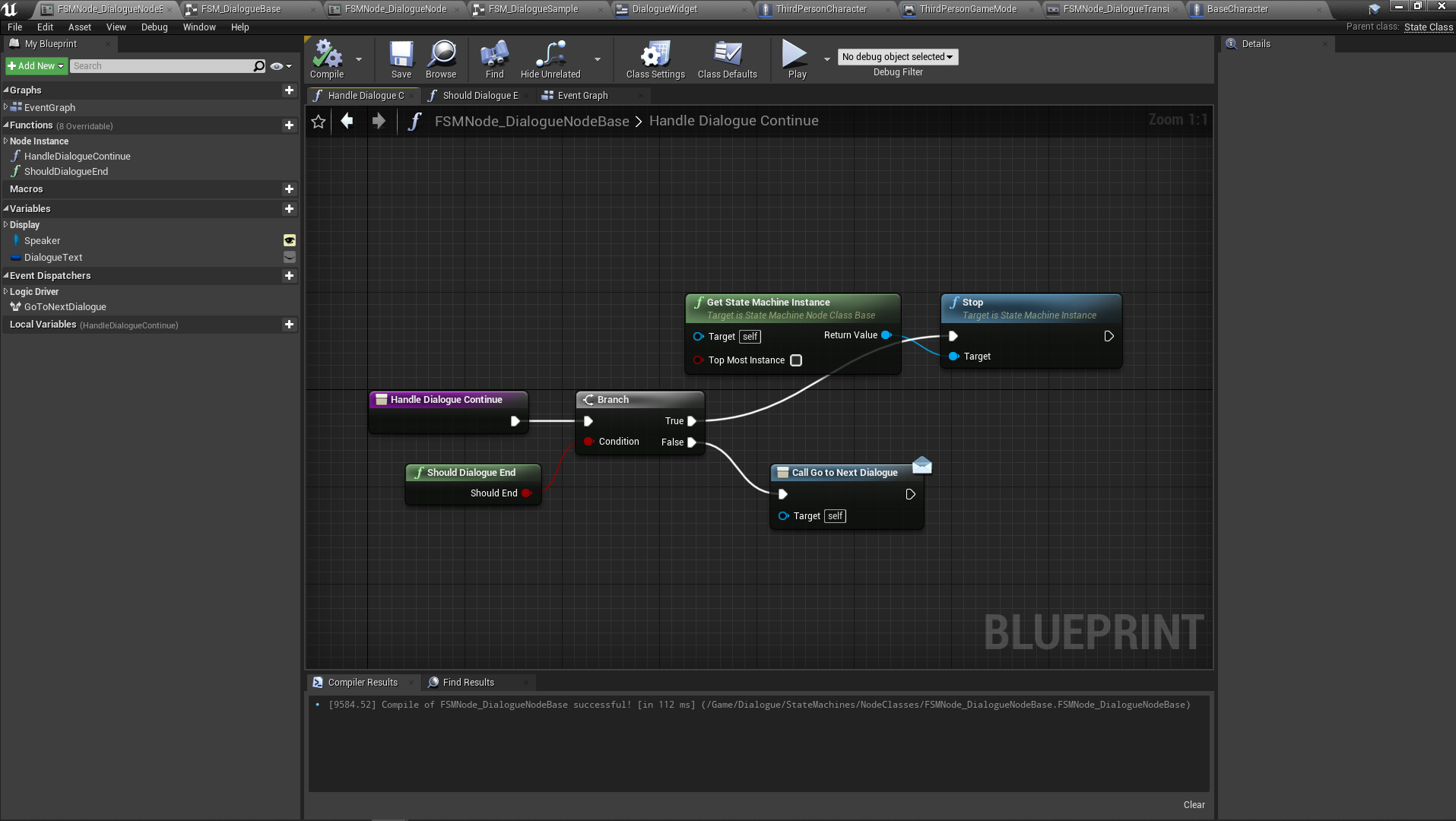
- Create a normal function called
HandleDialogueContinue - This is the normal operation to determine if we should go to the next dialogue or end.
Event Graph
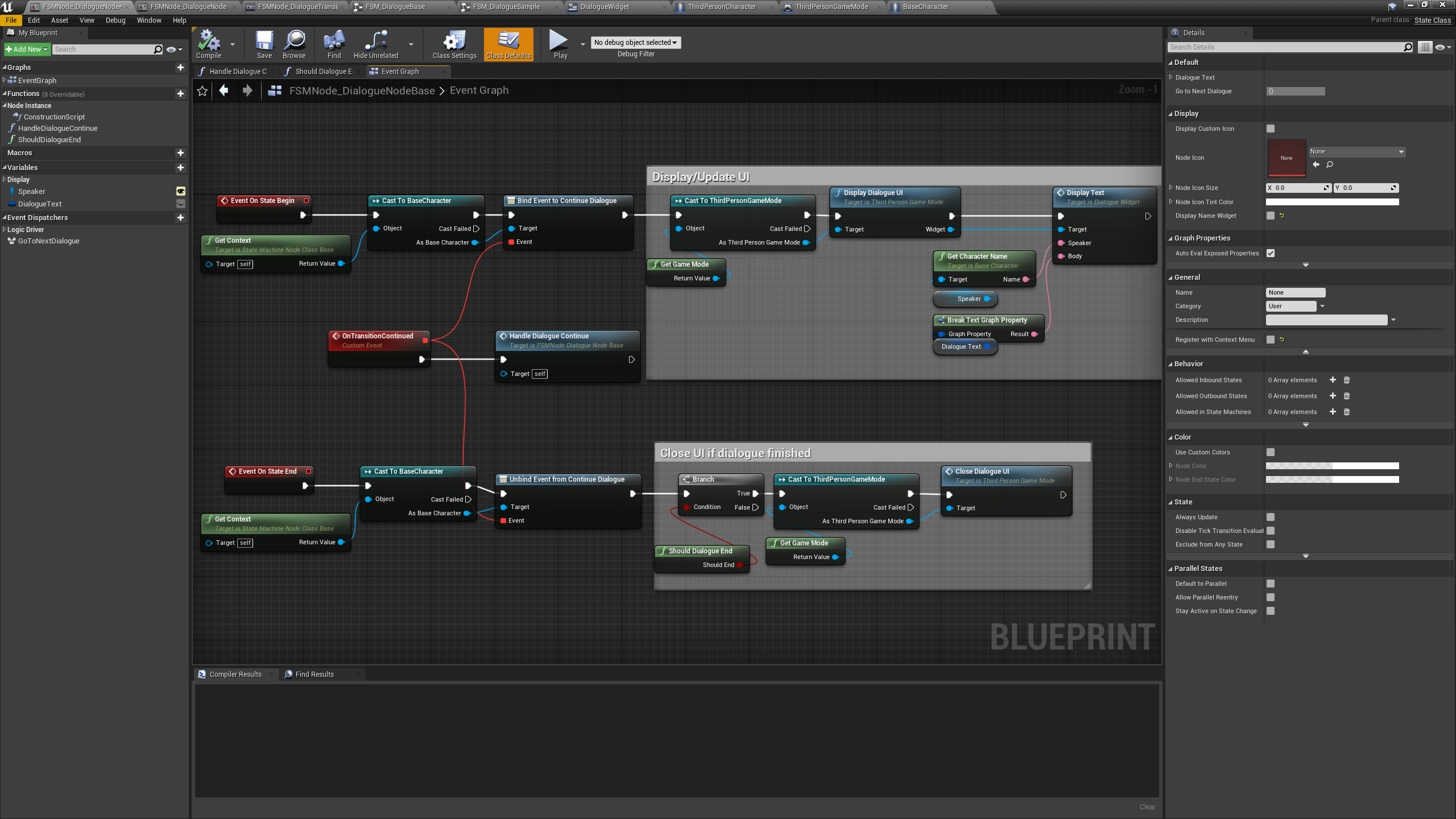
- The base graph will bind to the character's
Continue Dialogueevent dispatcher. When this event fires we will callHandle Dialogue Continue. - On State Start will display the dialogue UI and send it our speaker name. We also break the Dialogue Text to get the result.
- On State End we check if the dialogue is over and close the UI if necessary.
Dialogue Node (State Class)
General dialogue nodes that display text. These will be what we place in the graph.
- Create a state class that inherits from
FSMNode_DialogueNodeBasecalledFSMNode_DialogueNode. - Check
Register with Context Menuin class defaults.
Dialogue Transition (Transition Class)
Transitions will check if the previous dialogue node should exit.
- Create a transition class named
FSMNode_DialogueTransition. - Set
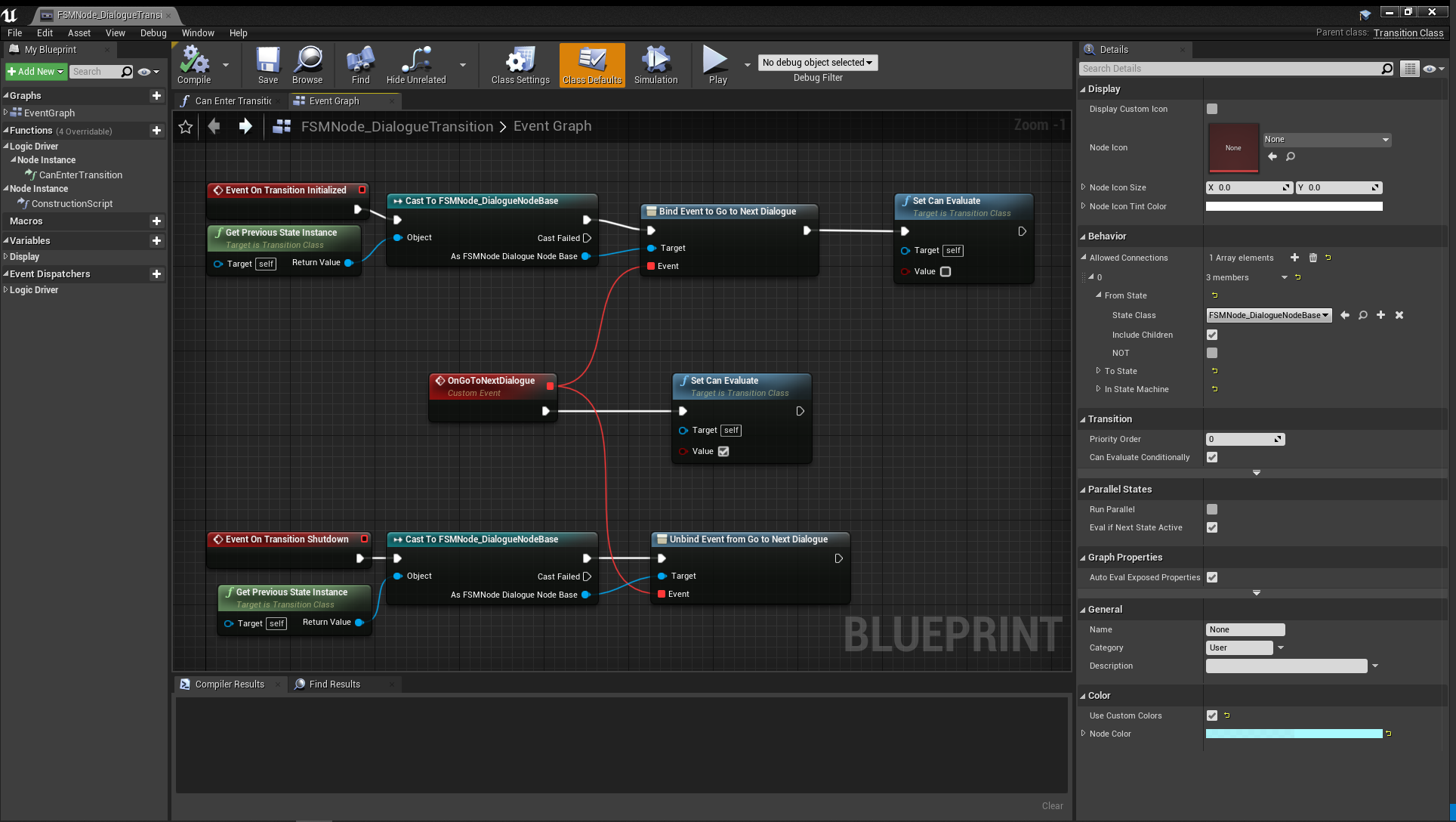
CanEnterTransitionto always returntrue. - In the event graph override events
Event On Transition InitializedandEvent On Transition Shutdown - Get the previous state, cast to
FSMNode_DialogueNodeBaseand bind to the event dispatcher we created earlierGoToNextDialogue. Make sureSetCanEvaluateis set to false on Initialize, and set to true when the event is called. - In the class defaults, add a behavior rule under
Allowed Connections. Set theFrom Stateto use the state class ofFSMNode_DialogueNodeBase. This will automatically place this transition when dragging from any type of dialogue node.